A volunteer project that brought hundreds of student testing reports into Excel and Power BI dashboards—and became my first data presentation to school leadership.
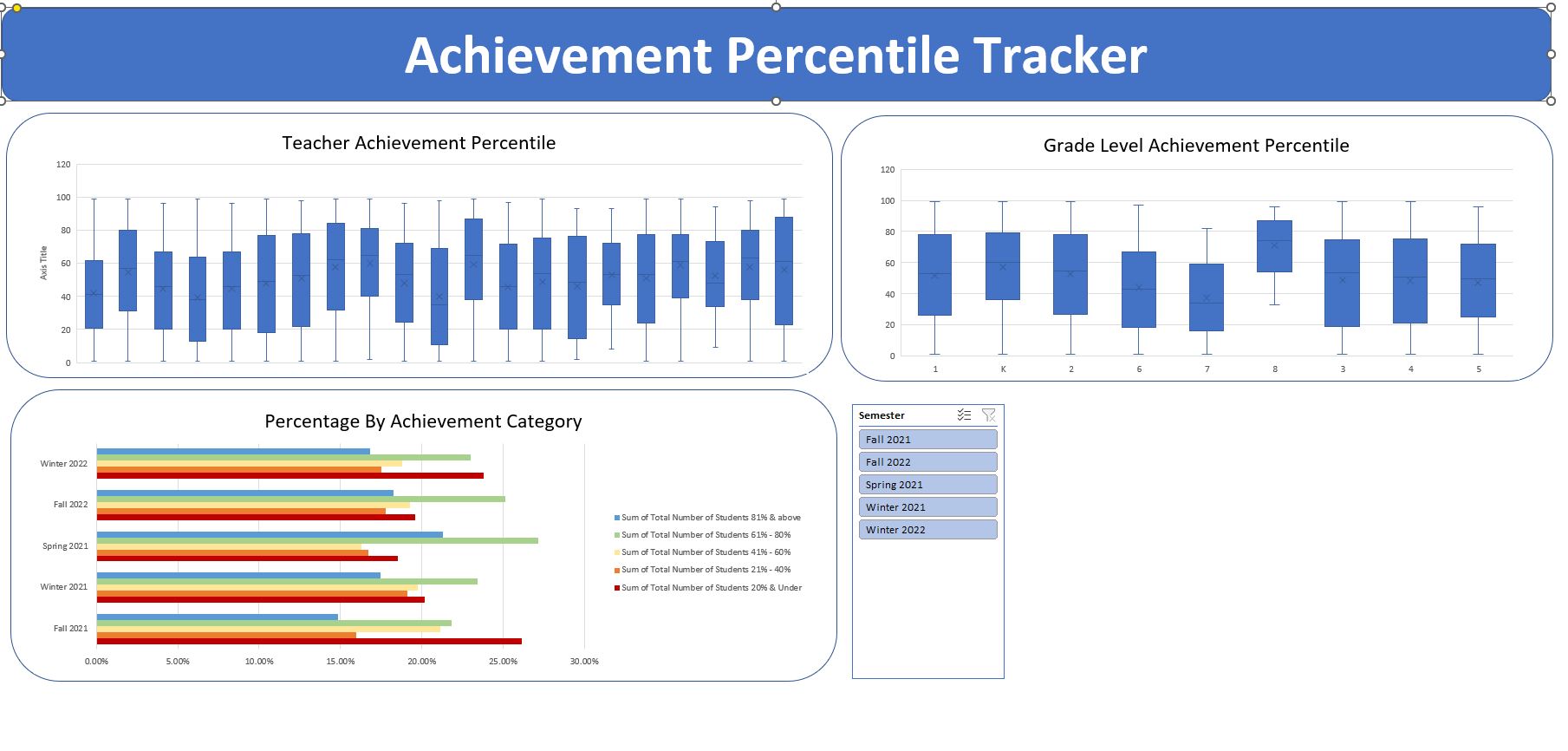
Original Excel Achievement Percentile Tracker from my volunteer school reporting project.
01 / THE QUESTION
The question
How could school leadership explore testing results from Fall 2021 through Winter 2022 by student, teacher, and grade level without reviewing hundreds of separate reports?
02 / THE APPROACH
The approach
Volunteered to compile hundreds of student testing reports from the school database and organize the results for analysis.
Created an Excel dashboard with student results and averages by teacher and grade level.
Added descriptive statistics, box plots, achievement-band charts, and filters to offer different views of the data.
Built Power BI pages for teacher-level and student-level exploration across subjects and testing periods.
Presented the dashboards to school leadership and explored their questions about teachers, grades, and individual student results.
03 / KEY INSIGHTS
Key insights
Averages, distributions, and individual student views answer different questions. Bringing them together helped leadership move between school-level patterns and focused exploration. Comparisons across periods need attention to the records included; aggregate changes alone do not establish individual growth or teacher effectiveness.
04 / OUTCOME & IMPACT
Outcome & impact
Turned hundreds of separate reports into Excel and Power BI dashboards and delivered my first data project presentation. Leadership responded enthusiastically and wanted to explore results by teacher, grade, and individual student. The project demonstrated both data preparation and the ability to communicate analysis to an engaged audience.
THE PROJECT IN DETAIL
Project walkthrough
SLIDE 01
Bringing hundreds of reports together
I volunteered to help a school make its testing results easier to explore. I compiled hundreds of student reports from the school database, covering the period from Fall 2021 through Winter 2022, and organized the results for analysis.
The Excel dashboard brought together student results, averages by teacher, and averages by grade level. Filters for semester, subject, student ID, and grade let school leadership move from an overall view to more specific questions.
SLIDE 02
Looking beyond a single average
I created additional views of the data so leadership could examine more than an overall average. The descriptive-statistics sheet includes means, medians, standard deviations, ranges, and counts alongside box plots for each displayed period.
These summaries provide context about variation in the recorded results. Counts differ across periods, so a change in an aggregate average should not automatically be interpreted as growth for the same group of students.
SLIDE 03
Comparing achievement distributions
I illustrated the results in different ways to support discussion with school leadership. Box plots show the distribution of achievement percentiles by teacher and grade level, while the category chart shows how results are distributed across achievement bands.
Together, these views support questions that averages alone cannot answer, such as whether a group has a wide range of results or whether its distribution differs across testing periods. They provide context for exploration, not a standalone evaluation of teacher effectiveness.
SLIDE 04
Exploring achievement bands with filters
This dashboard view organizes results into achievement bands and adds filters for instructor, semester, and grade. It gives leadership another way to narrow the discussion to the groups they want to understand.
The goal was to make the data usable during a conversation: leaders could ask about a teacher or grade level and explore the relevant results rather than work through separate student reports.
SLIDE 05
Building the teacher view in Power BI
I also developed a Power BI view focused on teachers and grade levels. It combines average achievement-percentile trends with an achievement-band breakdown and counts by grade.
Semester and instructor filters support more focused exploration. The different charts show complementary perspectives: a trend over time, the distribution across achievement bands, and how those bands are represented within grades.
SLIDE 06
Exploring individual student results
The student-focused Power BI page shows results by subject and testing period, with filters for semester, instructor, and student. Column and line charts provide two ways to review the selected results.
This was useful for the questions leadership wanted to explore about specific students’ scores and changes over time. The dashboard supports that review; it does not by itself explain why a result changed or establish the effect of an intervention.
SLIDE 07
My first data project presentation
This was my first data project presentation, and I volunteered to do it. After compiling the reports and building the dashboards, I presented the work to school leadership and walked them through the different ways they could explore the results.
The response was enthusiastic: leadership wanted to examine different teachers, grade levels, and individual students’ scores and growth. For me, it was a meaningful step from preparing data to helping people ask questions and use it.
Walkthrough reconstructed from Gerry Taylor II’s account and supplied screenshots. Repeated images are shown once, and original semester labels are retained. Leadership feedback is based on Gerry’s account; no measured improvement in student outcomes is claimed.